
Home Benefits Demos Customers Newsletters About Us Contact Us
Capture of Paper and Digital Documents


You can scan documents over your local-area-network and over the Internet.

You can use a scanner connected to a PC, or a MFP copier connected to your network.

You can scan paper documents and you can Virtual Scan digital documents, such as Word files or sales invoices printed to PDF files.

Scanning Features

Scan in black and white and color.

Image clean-up processing, including de-skew and noise removal improves image readability and OCR results.

Thumbnail Display shows the images for the current batch in reduced size and lets you move images and delete images.

Change scanner settings, such as page size, and image filter settings, within a document.

Discard blank-pages if you are scanning both sides of the paper.

You can add new pages (append images) to existing documents.

User-defined index cards let you optionally add index fields to your documents, such as date, source, and customer name.

Type index fields while scanning, or, if you are scanning thousands of documents per day, scan on one (or more) PC's and key in index fields on other PC's.

Write scanned documents to either BLOB fields inside the database, or write documents to Windows folders.

Scanning to Windows folders gives you the option to name scanned documents and write scanned documents to different folders, based on index fields you assign to the documents. For example, if, during scanning, you assign a client number and year to a document, the scanned document could be stored in a folder based on these values.

A document scanned for Client "12345" and Year "2010", with Title "Parking Deck Contract" could be written to the folder and file name: \12345\2010\Parking Deck Contract.pdf

SearchExpress can write scanned documents in either self-contained searchable (text plus image) PDF format or TIFF format.

The SearchExpress Wide-Area-Network (WAN) capture option lets you scan documents to a local server, and then upload the documents, over your Wide Area Network, at night when there is more available bandwidth.

Virtual Scanning

Virtual Scan can import HTML, PDF, TIFF, Word, Excel and other Office documents and store them as unalterable PDF or TIFF images.

Storing Office and HTML documents as unalterable images is often needed for SEC, Sarbanes-Oxley, NASD, IRS and other regulatory compliance.

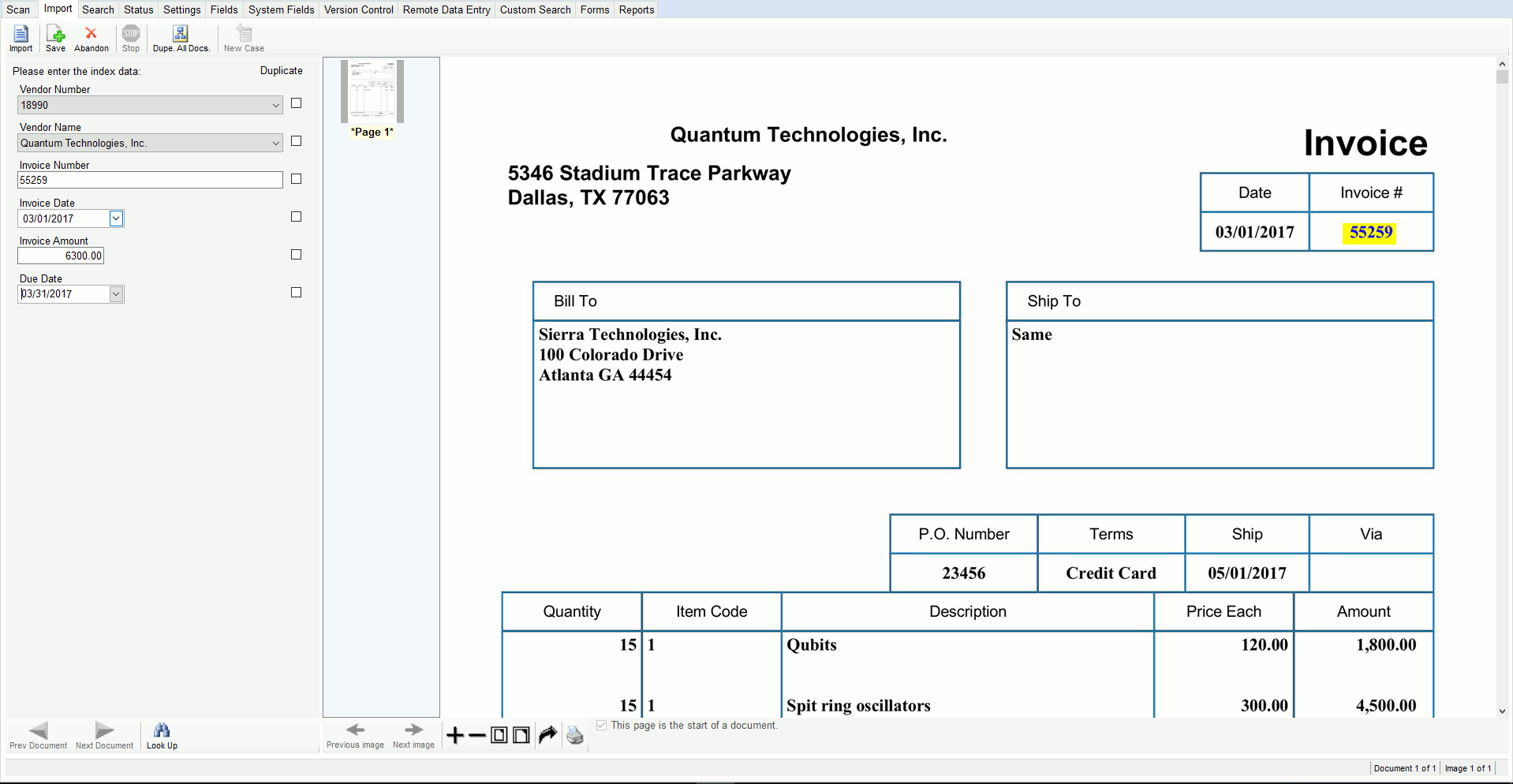
Virtual Scan displays the documents on the screen and lets you optionally enter index values, such as invoice number.

Virtual Scan has the same database lookup, barcode recognition, deskew, blank-page detection, and other image processing features provided by the scan program.

Virtual Scan can automatically import images every n minutes from a MFP copier.

Stamping Scanned Images

Electronic date and Bates stamp options, including:

Specify electronic stamp position.

Specify stamp font, font size and stamp font color.

SearchExpress can apply a fixed digital stamp to each scanned document. The stamp can be a text string or an image (such as a company logo).

Indexing

You can index the documents before you scan them, during scanning or after scanning.

SearchExpress provides a number of ways to make this indexing as easy as possible.

For example, you can enter an invoice number, and SearchExpress can read the other invoice fields, such as invoice amount and date, from your invoicing system, via an ODBC or SQL lookup.

Or, SearchExpress can perform automatic form recognition and zone OCR to read the invoice number, amount and date from the invoice.

Or, you can combine both of the above features. SearchExpress can use automatic form recognition and zone OCR to read an index field, such as an invoice number, and then use this invoice number to do an ODBC lookup to read the other index values for the document, such as date and amount.

Also, the SearchExpress Browser Data Entry Screen can show you only the documents with incomplete data or incorrect data. In the above case, this would be just those documents in which the invoice number was not correctly OCR'ed, and those documents in which the invoice number was correctly OCR'ed, but the invoice data could not be read from your invoice system.

You would not need to even look at the documents correctly indexed.

For the Browser Data Entry Screen, some of our clients use a two monitor setup, where you have one PC with two flat-screen monitors attached, one showing the index fields and one showing the images.

When scanning or entering data, there is a Duplicate checkbox next to each field. If “Dup” is checked on, the contents of the field are copied to the same field in the next document, when you go to the next document in that same batch. This makes data entry faster if you are scanning documents that have some of the same index fields, such as customer or patient name and number.

Index Documents Before Scanning

Optionally index documents from your desk, before you scan the documents with a MFP copier or scanner.

Use your browser to key data to a browser form and SearchExpress prints a barcode that you attach to the document.

Pick Lists

Self-Learning Pick Lists. When assigning index fields to newly scanned documents, as you key in fielded data, SearchExpress can automatically create pick lists of valid entries. For example, if you have a vendor-name field, as you scan documents and key in vendor names, the vendor names will be automatically entered into a pick list, so that you can choose vendor names from this pick list, instead of keying vendor names.

Or, pick lists can be read from SQL or ODBC databases. For example, pick-list entries for vendor names could be read from your ERP software or any Microsoft SQL, Oracle or other ODBC compliant database.

Hierarchical pick lists let one pick-list entry control another pick list's entries. For example, the pick-list selection of a particular Client could control which pick-list entries are shown for the Document Type field, e.g., Contract.

These pick lists can be used in Scanning, Fielded Data Entry, Advanced Search, Remote Data Entry and Internet Scanning.

Integration with other Applications

Database Synchronization will synchronize data in SearchExpress with your ERP (accounting), CRM (customer management) or other systems.

For example, if you are scanning your A/P invoices, when you later pay the invoice, Synchronization could update SearchExpress with the Date Paid and Check Number, by reading this data from your A/P database and writing this data to the SearchExpress database.

Search directly from any software application. If you are in your customer management software, accounts payable, or email, just highlight a word or phrase, and press a function key to perform a search and display the scanned documents containing the search phrase.

When scanning or indexing, speed data entry by looking up information from your business-critical applications. For example, enter a Customer Number and use the Lookup button to fill in the customer name and address, from any SQL or ODBC-compliant database.

A "Save to SearchExpress" Menu item in Word, Excel and Outlook Menus lets you save documents to the SearchExpress document repository while you are in Word, Excel or Outlook Email.

Barcodes

Automatically separate documents by using barcodes as document delimiters.

Use up to ten barcodes as index fields to describe and help retrieve the document.

You can use barcodes in a hierarchical fashion. For example, you could scan a barcode encoding a client number once, and scan a bunch of different documents for that client, putting in perhaps a document-type barcode for each document, without repeating the client (upper level) barcode.

OCR

Optical Character Recognition (OCR) lets you find documents by content, that is, by words or phrases in the documents.

Full-page OCR will OCR each word on the page.

Zone OCR lets you define zones and specify fields in which to place the OCR'ed text for each zone. For example, if you have sales invoices or Proof of Delivery documents with Customer Name, Invoice Number and other fields, you can scan the documents and SearchExpress can place the customer name in a Customer Name field, invoice number in an Invoice Number field, etc.

Version Control

SearchExpress Content Management provides document check-in/check-out and version control via your browser.

SearchExpress maintains the original version of each Word, Excel or other digital document, as well as any revised versions.

When revising Word, Excel and other documents, check-in/check-out protects against multiple people revising the document, and over-writing each other's revisions.

Version control lets you roll-back to previous versions of the document.

Content Management can be used for any type of digital document, including Word and other Microsoft Office documents, PDF, audio, video and scanned images.

To help protect the documents, the documents are stored in a secure repository on your server.

SearchExpress provides a manual check-in, whereby you can check-in documents as you revise them.

In addition, SearchExpress provides a batch check-in, so you can check-in all your existing documents at one time.

Electronic File Import

Electronic File Import automatically indexes all documents that are in Microsoft Word, PDF, HTML, Excel, PowerPoint, Video, Audio or other digital format, so you do not have to print and then scan these documents. You just provide a list of folders to monitor, to make these documents searchable.

You can specify that SearchExpress should index all folders under a given folder.

You can specify how often SearchExpress should index the folders, e.g., daily or hourly. When SearchExpress Electronic File Import runs, it indexes all new or changed files, and remove deleted files, from it's index.

Direct Integration with Kyocera and Sharp MFP copiers

You can scan and index documents directly from Kyocera and Sharp MFP's into SearchExpress Document Management.

You can use the Kyocera or Sharp touch screen or keyboard to add index fields, including choosing items, such as document type, from a pick list you create in SearchExpress.

"Save to SearchExpress" Menu items in Microsoft Office

A "Save to SearchExpress" Menu item in Word, Excel and Outlook Menus lets you save documents to the SearchExpress document repository while you are in Word, Excel or Outlook Email.

You can save documents to SearchExpress and also add index fields, such as invoice number, patient name, or client/matter number, while you are in Word, Excel or Outlook.

SearchExpress will default certain index fields for you. For example, if you are in Outlook, SearchExpress will add the From, To, Subject and Date of the email as index fields.

You can specify the documents be stored in SearchExpress in native format, e.g., Word, or that the documents be stored in SearchExpress as unalterable PDF or TIFF images.

Hardware and Operating Systems

SearchExpress is designed for Windows 7/Vista/2008/2003/XP/2000 platforms, including 32-bit and 64-bit versions of Windows and SharePoint.

You use your browser for many features, such as search and workflow, and you can use any browser device, including Apple iPhone, Android or Blackberry.

You can choose from three versions of SearchExpress, one version uses Microsoft SQL for the document database, one uses our own SearchExpress database, and one uses Microsoft SharePoint for the document database and repository.

Guarantee

To see how SearchExpress can benefit your organization, please call today to schedule your free remote demo.

We always offer SearchExpress with a 30 day money-back guarantee.

For more information on SearchExpress document management software, please call us at (205) 985-7686 or click here for more information. Our email address is SxSales@searchexpress.com.

 
  All rights reserved. Copyright 2012, SearchExpress® Phone: (205) 985-7686, SxSales@searchexpress.com