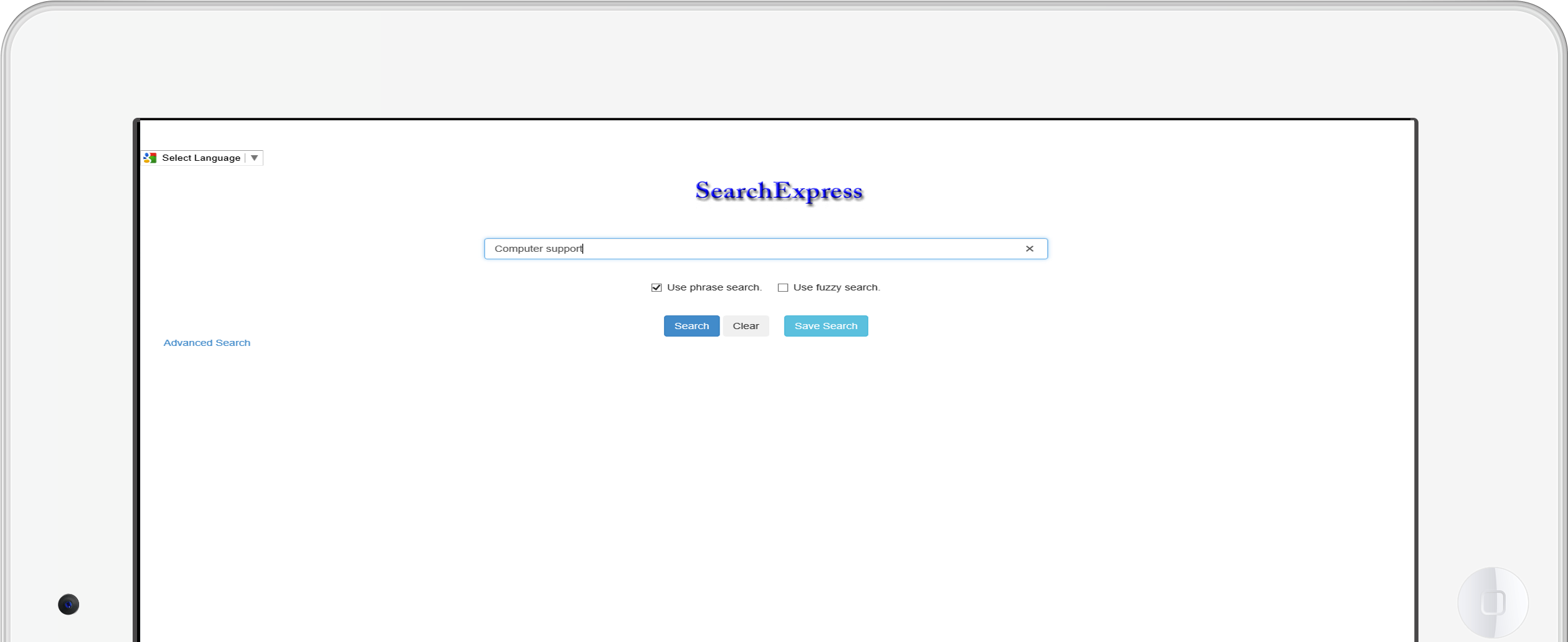
In your browser, type in a search phrase, e.g., "Intel contract", and all documents containing that search phrase are shown in a hit list,
including Office and other digital documents, as well as scanned documents.
Search documents by index fields assigned to the document, such as Document Type and Date.
Search documents by both content and index fields, e.g., find documents in which the Document Type field is Resume and the phrase
"speech recognition" is in the text of the document.
SearchExpress learns as you search, and provides an Autocomplete, to suggest searches based on search history.
SearchExpress can write a footer on Office files, including Author, Effective Date, “Approved By”, and “Checkin In By”.
SearchExpress can make display Word and Excel files in PDF format.
You can make notes on, highlight and draw on documents.
You can redact documents.
Use your web browser to browse your documents in virtual folders, e.g., a folder for each of your clients
and under each client folder a sub-folder for each document type, such as Contracts and Proposals. Index fields, such as Client Name, become
virtual folders.
Display Documents from Any Software Application
Search directly from any software application. For example, if you are in your customer management software, or A/R or A/P,
just highlight a word or phrase, and press a function key to perform a SearchExpress search and display the documents containing the search phrase.
Federated Search
Federated Search allows you to search across multiple databases, all at one time. For example, you could have one invoice database per company division, but do a cross-database search for a particular invoice number or part number.
Make Documents Omnipresent
In addition to searching from your desktop PC, you can search from your iPad, iPhone or Android, over Internet or intranet. This means you can access your documents, wherever you are.
HTML5 search screens will resize as needed for iPad and smartphones.
Robots
Robotic Process Automation (RPA) lets you automate searches and the actions to be performed with the documents found with the search. For example, you could create a search robot (wizard) that would search for documents that have been sent to your inbasket in which the "Due Date" is "today".
The robot can also perform actions, such as mass emailing sales invoices to customers, to avoid printing and mailing paper invoices.
Analytics and Report Writer
You can easily create reports in SearchExpress.
You can specify that reports be emailed daily, weekly, or monthly to selected users.
Reports could include number and total dollar amount of invoices approved this month by each department manager.
Reports could include the number of documents imported or scanned by each employee this month, and the number of documents searched.
Find and Replace Data
This gives you a batch change ability, to change some or all occurrences of a word or phrase. For example, you can find all occurrences of the word “GE” in a database, and replace each occurrence of GE with the words “General Electric”.
Document Security
Database, folder and document-level security lets you control who has access to documents. For example, you can specify that a given user (or Windows Group of users) can view all contracts except those for Project Surveillance Drones.
You can use your existing Windows Active Directory logins to authenticate users, or you can allow users to use their email address and a password they create.
There is a searchable audit database which records the search user name and time for all searches made and all documents viewed.
Natural Language Processing Allows Questions to be Answered
SearchExpress Natural Language Q&A lets employees and customers query databases of contracts, HR documents, engineeering documents,
and invoices and get answers.
You can ask questions and receive short answers to the questions, instead of a list of documents you have to read.
For example, you can ask:
“What is the inflation clause in the Smith Company contract”, and get the answer:
“Price is adjusted once a year by Consumer Price Index percentage”, without having to view a document.
Features
For document capture and indexing features, click here.
For business process automation (workflow) features, click here.